The MATLAB External Interface provides functions that enable MATLAB to access other Windows applications and for other Windows applications to access MATLAB in a wide range of contexts. These functions use dynamic data exchange (DDE), software that allows Microsoft Windows applications to communicate with each other by exchanging data. The Windows version of RasMol (http://www.openrasmol.org/) has a DDE interface. So using the MATLAB DDE commands you can connect to RasMol and control the display of molecules from within MATLAB.
RasMol can read a number of different types of data files including PDB format files. You can use the 'tofile' option of the GETPDB function to easily download PDB files.
pdbID = '1b41';
filename = [pdbID '.pdb'];
pdbstruct = getpdb(pdbID,'tofile',filename);
You will need a local installation of RasMol for this demonstration. RasMol can be downloaded from http://www.openrasmol.org/. You can start RasMol by double-clicking on the RasMol executable or by using the system command. Suppose that the raswin.exe is installed in D:\Applications\RasMol you can start it by using this command. You need to add the '&' at the end of the command so that MATLAB knows to run the command as a background process. The pause command is used to pause execution of MATLAB briefly to give RasMol time to start up before we try to connect to it. This step is not necessary if you start RasMol by double-clicking on the executable from the Windows Explorer.
system('d:\Applications\RasMol\raswin.exe &');
pause(0.1);
The command ddeinit is used to initiate the connection between MATLAB and RasMol.
channel = ddeinit('RasWin','System');
The ddeexec function is used to execute a remote command. Here is how to tell RasMol to load the 1b41.pdb file that you just downloaded. Note that which is used to get the full path to the file.
rc = ddeexec(channel,['load ' which(filename)]);

% You should now be able to see the Human Acetylcholinesterase molecule
% displayed in RasMol.
Now that the molecule is loaded and displayed in RasMol, you can use
ddeexec to set various properties of the display. See the RasMol
manual for a full list of commands.
rc = ddeexec(channel,'ribbons true');
rc = ddeexec(channel,'wireframe false');
rc = ddeexec(channel,'color temperature');
The write command in RasMol is used to create a GIF file. This can be read into MATLAB using the imread command and displayed with the image command.
imfilename = [pdbID '.gif'];
rc = ddeexec(channel,['write gif ' imfilename]);
[im, cmap] = imread(imfilename);
image(im);colormap(cmap);axis off
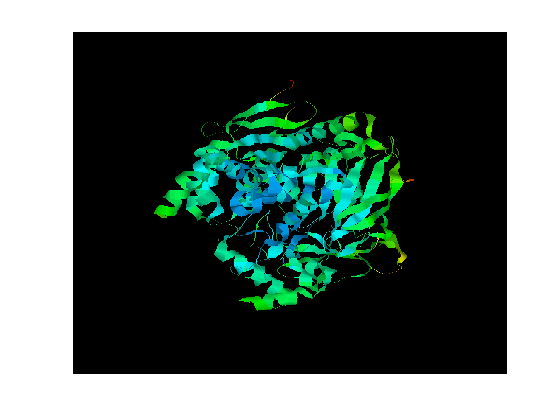
Once you have finished using the connection you can close down the connection. One way to do this is to pass a quit command to RasMol. alternatively, if you want to keep the RasMol window open but no longer need the connection, you can use the ddeterm command to close the connection.
% Close the connection but leave RasMol open.
% rc = ddeterm(channel);

% Shut down RasMol.
rc = ddeexec(channel,'quit');

% Clean up temporary files.
delete(filename);
delete(imfilename);