Two images of the same scene can only be compared directly if they are in the same coordinate system. Image registration is the process of transforming one image into the coordinate system of another image.
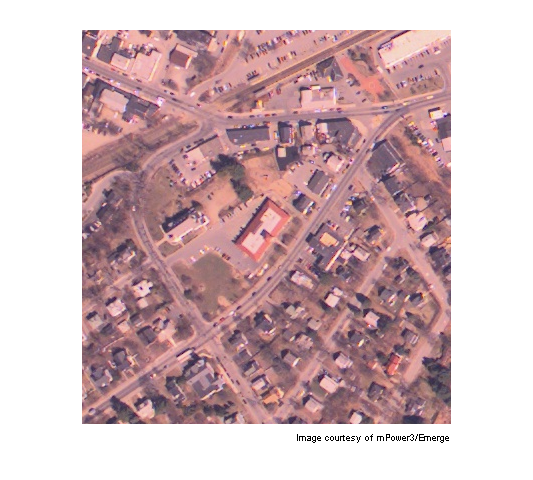
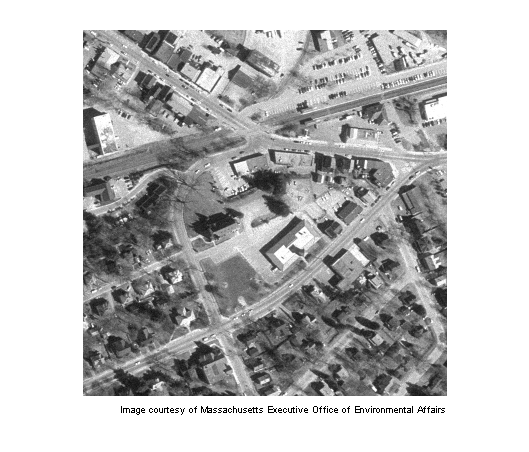
The image westconcordorthophoto.png is an orthophoto that has already been registered to the ground. The image westconcordaerial.png is unregistered as it was taken from an airplane and is distorted relative to the orthophoto.
unregistered = imread('westconcordaerial.png');
figure, imshow(unregistered)
text(size(unregistered,2),size(unregistered,1)+15, ...
    'Image courtesy of mPower3/Emerge', ...
    'FontSize',7,'HorizontalAlignment','right');
registeredOriginal = imread('westconcordorthophoto.png');
figure, imshow(registeredOriginal)
text(size(registeredOriginal,2),size(registeredOriginal,1)+15, ...
    'Image courtesy of Massachusetts Executive Office of Environmental Affairs', ...
    'FontSize',7,'HorizontalAlignment','right');
The unregistered image is an RGB image but cpselect only takes grayscale images, so you will pass it one plane of the RGB image.
load westconcordpoints % load some points that were already picked
cpselect(unregistered(:,:,1),'westconcordorthophoto.png',...
         input_points,base_points)
This tool helps you pick pairs of corresponding control points. Control points are landmarks that you can find in both images, like a road intersection, or a natural feature.
Four pairs of control points have already been picked. If you want to proceed with these points, go to Step 3: Infer Geometric Transformation.
If you want to add some additional pairs of points, do so by identifying landmarks and clicking on the images.
Save control points by choosing the File menu, then the Save Points to Workspace option. Save the points, overwriting variables input_points and base_points.
Because we know that the unregistered image was taken from an airplane, and the topography is relatively flat, it is likely that most of the distortion is projective. cp2tform will find the parameters of the projective distortion that best fits the stray input_points and base_points you picked.
t_concord = cp2tform(input_points,base_points,'projective');
Even though the points were picked on one plane of the unregistered image, you can transform the entire RGB image. imtransform will apply the same transformation to each plane. Note that the choice of 'XData' and 'YData' values ensures the registered image will be aligned with the orthophoto.
info = imfinfo('westconcordorthophoto.png');
registered = imtransform(unregistered,t_concord,...
                         'XData',[1 info.Width], 'YData',[1 info.Height]);
figure, imshow(registered)
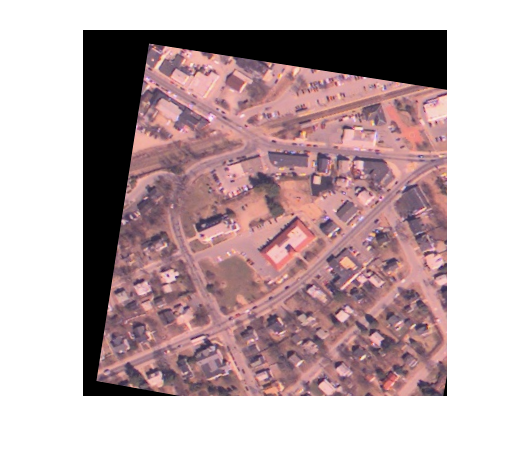
Compare this visually to the orthophoto and to the unregistered image. Try going back to Step 2: Choose Control Points and using more than four pairs of points. Are the results better? What if the points are clumped together?
If you want to experiment with larger images, follow the steps above to register concordaerial.png to concordorthophoto.png.