Vehicle Dynamics Visualization
The vr_octavia example shows the benefits of visualization of
complex dynamic model in the virtual reality environment. It also demonstrates Virtual Reality Toolbox
3D off-line animation recording functionality.
The pre-computed simulation data, representing one lap of a vehicle on a testing circuit, is converted from dynamic model signal structure into the form that can be sent to the virtual reality scene. This conversion includes splitting the combined signals into signals governing individual VRML objects properties and coordinate systems transformations. The data is then sent to the virtual reality scene using VR Sink block with sample rate 25 Hz.
The dynamic model provides not only signals that influence visual properties of objects (positions and rotations), but also forces and other similar quantities, that can be visualized as well. In this example, wheel forces are visualized using VRML triads scaled dynamically according to current force values. Force triads can be switched off by the Forces Visibility Switch.
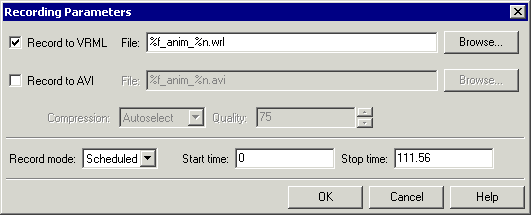
Virtual Reality Toolbox allows two methods of recording animation files - 2D animation (AVI files) and 3D animation (VRML files). Here we describe how a 3D VRML animation file can be created and further used. In the internal viewer Recording menu select the Recording Parameters... option. The following dialog box appears:
Check the Record to VRML checkbox. Leave the File: editbox at its default value. Select the Scheduled Recording mode and specify the time period for which you want to record the offline animation time. Here we record the animation during the entire simulation time defined for this model, you may select any time interval between the Simulink model Start time and Stop time. For details on recording parameters please refer to the toolbox documentation.
Once you define these animation recording parameters, animation file is created automatically when you start
the simulation. Unlike with creating the 2D animation files, the internal viewer figure
can be minimized during simulation, which significantly speeds up the simulation. At the end of simulation run,
the created VRML animation file octavia_scene_anim_1.wrl remains in the working directory
for later use.
If you distribute animation files, make sure to also distribute all the inlined object and texture files referenced in the original VRML world file.
In the case of this demonstration example, the following files must be distributed together with the resulting
animation file octavia_scene_anim_1.wrl :
- octavia_body.wrl
- octavia_road.wrl
- /texture/octavia_*.jpg
As the VRML animation file is created by default (shown in the picture above) into the current working directory, and not the Virtual Reality Toolbox demos directory, you will need to copy all these files to the current working directory to view the off-line animation file correctly.
Viewing VRML off-line animation file:
You can view the resulting VRML animation file using either blaxxun Contact or
any other generally available VRML97 viewer, or using Virtual Reality Toolbox Internal Viewer.
When using the internal viewer, it is necessary to set the virtual world TimeSource
property to freerun to be able to see the animation. Let's assume that you want to view the
octavia_scene_anim_1.wrl file that is in your current working directory.
You can display this animated file using the following commands issued at the MATLAB command window:
    w=vrview('octavia_scene_anim_1.wrl');

    set(w, 'TimeSource', 'freerun');
Skoda Octavia model copyright Skoda Auto, courtesy of Ismar VR, Czech Republic.
Road geometry and simulation data generated using veDYNA by TESIS DYNAware, Germany.